Slow Wi-Fi and dead zones frustrate millions of households every day. The right home networking ideas can fix these problems and transform how a family connects to the internet. Whether someone streams 4K video, works from home, or runs smart devices throughout the house, a well-designed network makes all the difference.
This guide covers practical strategies to improve speed and coverage. Readers will learn how to assess their current setup, upgrade equipment, and optimize settings for peak performance. Each section offers actionable steps that anyone can follow, no advanced technical knowledge required.
Table of Contents
ToggleKey Takeaways
- Assess your current network by running speed tests in multiple rooms and identifying outdated equipment before investing in upgrades.
- A mesh Wi-Fi system is one of the best home networking ideas for eliminating dead zones in large or multi-story homes.
- Run Ethernet cables to high-bandwidth devices like gaming consoles, smart TVs, and desktop computers for superior speed and reliability.
- Optimize router placement by positioning it centrally in your home, elevated off the floor, and away from metal objects or thick walls.
- Adjust router settings like channel selection, band steering, and Quality of Service (QoS) to boost performance without spending extra money.
- Use network segmentation to isolate IoT devices, work equipment, and kids’ devices for improved security and bandwidth management.
Assess Your Current Network Setup
Before buying new equipment, homeowners should understand what they already have. A quick network assessment reveals bottlenecks and helps prioritize upgrades.
Start by identifying the router model and its age. Routers older than five years often lack support for modern Wi-Fi standards like Wi-Fi 6. Check the manufacturer’s specifications to confirm the maximum speed and frequency bands available.
Next, run a speed test from multiple locations in the home. Free tools like Speedtest by Ookla measure download and upload speeds in seconds. Test results near the router should match (or come close to) the internet plan’s advertised speeds. Results from distant rooms show where coverage drops off.
Count the devices connected to the network. Modern households often run 15 to 25 devices simultaneously, phones, laptops, smart TVs, gaming consoles, and IoT gadgets. Older routers struggle to manage this traffic efficiently.
Finally, check for interference sources. Microwave ovens, cordless phones, and neighboring Wi-Fi networks can degrade signal quality. Apps like Wi-Fi Analyzer display nearby networks and their channels, helping users spot congestion.
Upgrade to a Mesh Wi-Fi System
A mesh Wi-Fi system represents one of the best home networking ideas for large or multi-story homes. Unlike traditional routers, mesh systems use multiple nodes that work together to blanket a space with consistent coverage.
Each node communicates with the others, creating a single seamless network. Users move from room to room without experiencing drops or reconnections. Popular mesh systems include Google Nest Wi-Fi, Eero, and TP-Link Deco.
Mesh systems excel in homes larger than 2,000 square feet or those with challenging layouts. Thick walls, multiple floors, and long hallways block signals from single-router setups. Adding mesh nodes eliminates dead zones without running cables.
Setup is typically straightforward. Most mesh systems include mobile apps that guide users through installation in under 15 minutes. The apps also provide network management features like device prioritization and parental controls.
For homes with existing smart devices, mesh systems offer another advantage: better handling of multiple connections. A quality mesh network distributes bandwidth more effectively than a single router trying to serve dozens of devices.
Run Ethernet Where It Matters Most
Wi-Fi offers convenience, but wired connections deliver superior speed and reliability. Running Ethernet cables to key devices is a home networking idea that pays dividends for years.
Devices that benefit most from Ethernet include:
- Desktop computers used for work or gaming
- Smart TVs that stream 4K or 8K content
- Gaming consoles where latency affects performance
- Network-attached storage (NAS) devices
- Home office equipment like printers and VoIP phones
Ethernet connections eliminate wireless interference and provide consistent speeds. A Cat6 cable supports speeds up to 10 Gbps over short distances, far exceeding most home internet plans.
For homes without existing Ethernet wiring, several options exist. Powerline adapters use electrical wiring to transmit data between rooms. MoCA adapters do the same through coaxial cables. Both solutions avoid the need to drill holes or run cables through walls.
Professional installation costs vary but typically range from $150 to $500 per drop, depending on the home’s construction. DIY installation saves money for those comfortable with basic tools and cable management.
Optimize Router Placement and Settings
Router placement significantly impacts network performance. Many homeowners stick their router in a corner or closet, then wonder why coverage suffers.
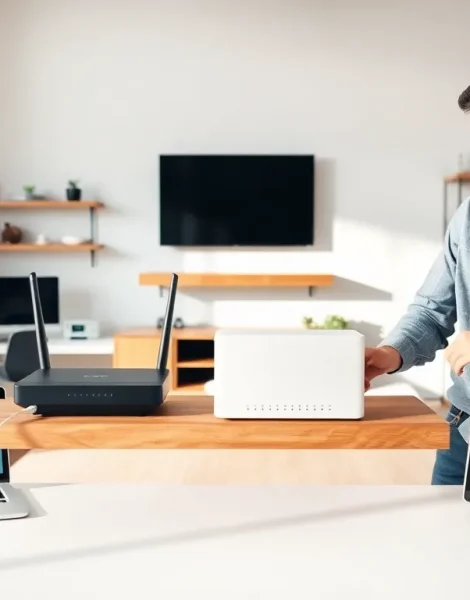
The ideal router location sits near the center of the home, elevated off the floor. Placing it on a shelf or mounting it on a wall improves signal distribution. Keep the router away from metal objects, fish tanks, and brick walls, all of which block or absorb Wi-Fi signals.
Router settings also affect performance. Access the router’s admin panel (usually through a web browser) to adjust these key options:
Channel Selection: Switch from auto to a specific channel if neighbors’ networks cause interference. Channels 1, 6, and 11 work best for 2.4 GHz networks because they don’t overlap.
Band Steering: Enable this feature to push compatible devices onto the faster 5 GHz band automatically. The 2.4 GHz band offers better range but slower speeds.
Quality of Service (QoS): Prioritize bandwidth for specific devices or applications. This ensures video calls stay smooth even when someone else downloads large files.
Firmware Updates: Check for and install updates regularly. Manufacturers release patches that fix security holes and improve performance.
These home networking ideas require no additional spending, just a few minutes of configuration.
Add Smart Home Network Segmentation
Network segmentation separates devices into different groups, improving both security and performance. This approach creates isolated networks that prevent problems in one area from affecting others.
Most modern routers support guest networks. Setting up a guest network for visitors keeps them off the main network where sensitive devices live. But segmentation can go further.
Consider creating separate network segments for:
- IoT devices: Smart bulbs, thermostats, and cameras often have weak security. Isolating them protects computers and phones if a device gets compromised.
- Work devices: A dedicated segment for home office equipment ensures stable bandwidth during business hours.
- Kids’ devices: Separate networks make it easier to apply content filters and time limits.
Some routers offer VLAN (Virtual Local Area Network) support for advanced segmentation. VLANs create truly isolated networks that can’t see each other’s traffic.
For those without VLAN-capable hardware, a second router creates a simple segmented setup. Connect the second router to the primary one and configure it with different network credentials. IoT devices connect to this secondary network while primary devices stay on the main one.
Network segmentation represents a forward-thinking home networking idea as households add more connected devices each year.