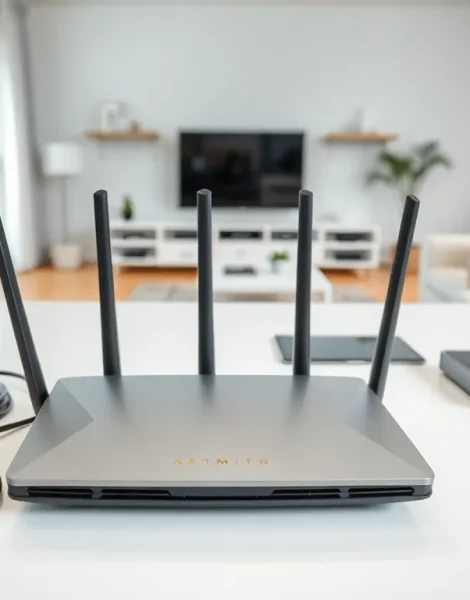
Learning how to home networking works can feel overwhelming at first. Cables, routers, IP addresses, it’s a lot to take in. But here’s the good news: setting up a reliable home network is simpler than most people think.
A strong home network connects all your devices to the internet and to each other. It lets you stream movies, work from home, play online games, and control smart devices without interruption. Whether you’re starting from scratch or upgrading an old setup, this guide breaks down everything you need to know. No tech degree required.
Table of Contents
ToggleKey Takeaways
- A home network requires two main components—a modem to connect to your ISP and a router to distribute internet to all your devices.
- Position your router in a central, elevated location away from walls and interference sources for optimal Wi-Fi coverage.
- Secure your home networking setup by changing default credentials, enabling WPA3 encryption, and creating a guest network for visitors.
- Invest in quality equipment like Wi-Fi 6 routers and Cat6 Ethernet cables to handle multiple devices efficiently.
- Most home networking issues can be resolved by restarting your modem and router or checking for firmware updates.
- Setting up a reliable home network takes about 30 minutes and doesn’t require any technical expertise.
Understanding Home Network Basics
A home network is a group of devices connected to share data and internet access. These devices include computers, phones, tablets, smart TVs, and gaming consoles.
Every home network has two main components: a modem and a router. The modem connects your home to your internet service provider (ISP). The router distributes that connection to all your devices. Many ISPs now provide a combined modem-router unit, which simplifies the setup.
Networks come in two types: wired and wireless. Wired connections use Ethernet cables and offer faster, more stable speeds. Wireless connections (Wi-Fi) provide flexibility and convenience. Most modern home networking setups use both.
Each device on your network receives an IP address. Think of it like a mailing address, it tells data where to go. Your router assigns these addresses automatically through a system called DHCP. You don’t need to configure anything manually unless you want to.
Understanding these basics gives you the foundation to build a network that meets your needs.
Essential Equipment You Need
Before you start your home networking project, gather the right equipment. Here’s what you’ll need:
Modem: This device connects to your ISP through a coaxial or fiber cable. Some ISPs require you to rent their modem. Others let you buy your own, which saves money over time.
Router: The router creates your local network and broadcasts Wi-Fi. Look for a router that supports Wi-Fi 6 (802.11ax) for better speed and range. Dual-band or tri-band routers handle multiple devices more efficiently.
Ethernet Cables: Cat6 or Cat6a cables work well for most homes. Use them to connect devices that need stable, high-speed connections, like gaming PCs or smart TVs.
Network Switch (optional): If you have many wired devices in one area, a switch expands your available Ethernet ports.
Mesh Wi-Fi System (optional): Large homes or multi-story buildings benefit from mesh systems. These use multiple access points to eliminate dead zones.
Quality equipment makes a difference. Cheap routers often struggle with multiple devices. Spending a bit more upfront saves frustration later.
Step-by-Step Network Setup Process
Setting up home networking takes about 30 minutes with the right approach. Follow these steps:
Step 1: Position Your Equipment
Place your router in a central location. Avoid closets, basements, or corners, walls and floors weaken Wi-Fi signals. Elevate the router on a shelf if possible. Keep it away from microwaves and cordless phones, which cause interference.
Step 2: Connect the Modem
Plug the modem into your ISP’s outlet (coaxial, DSL, or fiber). Connect the power cable and wait for the status lights to stabilize. This usually takes 2-3 minutes.
Step 3: Connect the Router
Use an Ethernet cable to connect the modem to the router’s WAN (or Internet) port. Power on the router and wait for it to boot up.
Step 4: Access the Router’s Admin Panel
Open a web browser and enter the router’s default IP address (often 192.168.0.1 or 192.168.1.1). Log in using the credentials on the router’s label. Change the default admin password immediately.
Step 5: Configure Wi-Fi Settings
Create a network name (SSID) that’s easy to remember. Set a strong Wi-Fi password, at least 12 characters with letters, numbers, and symbols. Enable WPA3 encryption if your router supports it.
Step 6: Connect Your Devices
Find your new network on each device and enter the password. For wired connections, plug Ethernet cables directly into the router’s LAN ports.
Your home network is now live.
Securing Your Home Network
A secure home network protects your data and privacy. Hackers target weak networks to steal information or use your bandwidth. Take these steps to stay safe:
Change Default Credentials: Router manufacturers use the same login details for millions of devices. Change both the admin username and password right away.
Use Strong Encryption: WPA3 offers the best protection. If your devices don’t support it, use WPA2. Never use WEP, it’s outdated and easy to crack.
Update Firmware Regularly: Router manufacturers release updates that fix security holes. Check for updates every few months or enable automatic updates.
Create a Guest Network: Give visitors access to a separate network. This keeps your main network and connected devices isolated from unknown devices.
Disable WPS: Wi-Fi Protected Setup (WPS) makes connecting easier but creates security risks. Turn it off in your router settings.
Enable Your Firewall: Most routers have a built-in firewall. Make sure it’s turned on to block unauthorized traffic.
Home networking security isn’t paranoia, it’s common sense. A few minutes of setup prevents major headaches.
Troubleshooting Common Issues
Even well-planned home networking setups hit snags. Here’s how to fix the most common problems:
Slow Wi-Fi Speeds
Move closer to the router or reduce interference. Check if other devices are hogging bandwidth. Run a speed test at different times, peak hours often cause slowdowns. Consider upgrading to a mesh system for better coverage.
Devices Won’t Connect
Double-check the password. Restart the device and the router. Make sure the device’s Wi-Fi is turned on. Some older devices don’t support newer security protocols, try switching from WPA3 to WPA2.
Intermittent Connection Drops
This often signals interference or overheating. Move the router away from other electronics. Ensure proper ventilation around the device. Update the router’s firmware.
No Internet Access
Check if the modem has a solid internet light. Restart both the modem and router. Contact your ISP if the problem persists, outages happen.
IP Address Conflicts
Two devices sharing an IP address cause connection issues. Restart the affected devices. If the problem continues, release and renew IP addresses through each device’s network settings.
Most home networking issues resolve with a simple restart. When in doubt, power cycle everything.