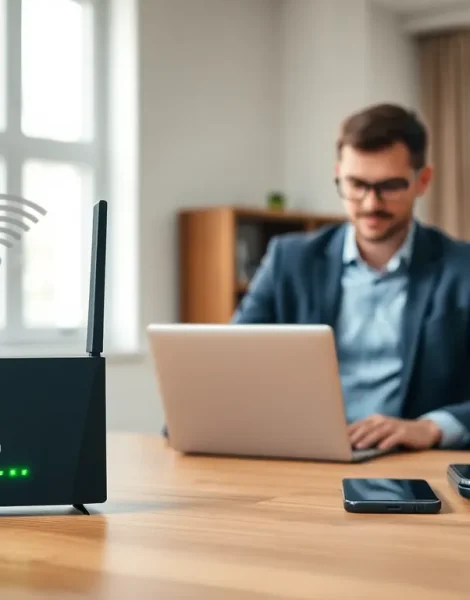
Home networking tips can transform a frustrating internet experience into a seamless one. A slow or unreliable connection affects everything from video calls to streaming and online gaming. The good news? Most home network problems have simple solutions.
This guide covers the essentials: picking the right router, placing it correctly, securing the network, and fixing common issues. Whether someone is setting up a new home network or improving an existing one, these practical steps will help maximize speed and reliability.
Table of Contents
ToggleKey Takeaways
- Place your router in a central, elevated location to maximize Wi-Fi coverage and avoid signal-blocking materials like concrete, metal, and fish tanks.
- Choose a mesh system for larger homes or spaces with thick walls, while a single router works well for apartments under 1,500 square feet.
- Secure your home network by changing default passwords, using WPA3 encryption, and enabling a guest network for visitors and smart devices.
- Keep router firmware updated and disable risky features like WPS to protect against security vulnerabilities.
- Troubleshoot slow speeds by testing your connection, switching to less crowded Wi-Fi channels, and using wired Ethernet for stationary devices.
- These home networking tips help eliminate dead zones, reduce interference, and ensure reliable connectivity for all your devices.
Choosing the Right Router for Your Needs
The router is the foundation of any home network. Picking the right one depends on the size of the home, the number of connected devices, and internet usage patterns.
Understanding Wi-Fi Standards
Wi-Fi 6 (802.11ax) is the current standard for most households. It handles multiple devices better than older standards and offers faster speeds. Wi-Fi 6E adds a 6 GHz band, which reduces congestion in busy homes. For basic browsing and streaming, a Wi-Fi 5 router still works fine, but it won’t handle heavy use as well.
Single Router vs. Mesh Systems
A single router works well for apartments and smaller homes under 1,500 square feet. For larger spaces or homes with thick walls, a mesh system provides better coverage. Mesh networks use multiple access points that work together. They eliminate dead zones without requiring range extenders.
Key Features to Look For
Bandwidth matters. A dual-band router (2.4 GHz and 5 GHz) meets most needs. Tri-band routers add an extra 5 GHz channel, useful when many devices connect simultaneously. Look for at least four gigabit Ethernet ports for wired connections. Quality of Service (QoS) settings let users prioritize traffic for gaming or video calls.
Home networking tips often overlook processor speed. A faster processor handles more simultaneous connections without slowing down. For households with 20+ devices, look for routers with quad-core processors.
Optimal Router Placement for Better Coverage
Router placement dramatically affects Wi-Fi performance. Many people hide their routers in closets or behind furniture, this kills the signal.
The Central Location Rule
Place the router in a central spot in the home. Wi-Fi signals radiate outward in all directions. A router in the corner of the house wastes half its coverage on the yard or neighbors. Elevating the router helps too. Signals travel better horizontally and slightly downward, so placing it on a high shelf or mounting it on a wall improves coverage on lower floors.
Avoiding Signal Killers
Certain materials block or weaken Wi-Fi signals. Concrete and brick walls absorb signals heavily. Metal objects, including filing cabinets and refrigerators, reflect signals in unpredictable ways. Keep the router away from microwaves and cordless phones, they operate on similar frequencies and cause interference.
Fish tanks are surprisingly bad for Wi-Fi. Water absorbs 2.4 GHz signals effectively. Mirrors can also deflect signals due to their metallic backing.
Testing and Adjusting
Free apps like NetSpot or WiFi Analyzer show signal strength throughout the home. Walk around with a smartphone and check the readings in different rooms. If certain areas show weak signals, try moving the router or adjusting the antenna position. External antennas should point perpendicular to each other for the best omni-directional coverage.
Securing Your Home Network
An unsecured home network invites trouble. Hackers can steal data, use bandwidth, or launch attacks through an open connection.
Password Basics
Change the default router password immediately. Manufacturers use the same credentials across thousands of devices, and these defaults are publicly known. Create a strong Wi-Fi password with at least 12 characters, mixing letters, numbers, and symbols. Avoid obvious choices like addresses or pet names.
Use WPA3 encryption if the router supports it. WPA2 remains acceptable, but avoid WEP, it’s outdated and easily cracked.
Network Segmentation
Most modern routers offer a guest network feature. Enable it for visitors and smart home devices. This keeps IoT gadgets separate from computers containing sensitive data. If a smart device gets compromised, the attacker can’t easily reach other parts of the network.
Firmware Updates
Router manufacturers release firmware updates to patch security holes. Many routers now offer automatic updates, enable this feature. For routers without automatic updates, check the manufacturer’s website monthly. Outdated firmware is one of the biggest security risks in home networking.
Disabling Risky Features
Turn off WPS (Wi-Fi Protected Setup). It’s convenient but has known security flaws. Disable remote management unless it’s specifically needed. These home networking tips reduce the attack surface significantly.
Troubleshooting Common Connectivity Issues
Even well-configured home networks experience problems. Here’s how to fix the most frequent issues.
Slow Speeds
First, test the actual speed using Speedtest.net or Fast.com. Compare results to the internet plan’s advertised speed. If speeds match the plan but feel slow, the plan might need an upgrade.
If speeds are lower than expected, try restarting the router. This clears the memory and often resolves temporary slowdowns. Connect directly to the router with an Ethernet cable, if wired speeds are normal but Wi-Fi is slow, the problem is wireless interference.
Channel congestion causes many Wi-Fi problems, especially in apartments. The router’s admin panel shows which channel it’s using. Switch to a less crowded channel, or enable auto-channel selection.
Intermittent Disconnections
Random disconnections often point to overheating. Check if the router feels hot and ensure it has adequate ventilation. Outdated firmware can also cause instability.
For devices that disconnect frequently while others stay connected, the issue is likely device-specific. Update the device’s network drivers or forget and rejoin the network.
Dead Zones
Persistent dead zones require hardware solutions. A mesh system provides the cleanest fix. Alternatively, powerline adapters use electrical wiring to extend the network. Wired connections remain the most reliable option for stationary devices like gaming consoles and desktop computers.